

One morning I opened my PC and noticed that my C: drive was almost full. I had not installed anything new or so I thought. After a little digging, I discovered that a 2GB program had been silently installed on my system without my knowledge. If this has ever happened to you, you know how unsettling it feels. In this article, I will show you exactly how I found the culprit and removed it using IObit Uninstaller the best uninstaller for Windows I have used in years.
Step 1 — Find the Culprit Using the Install Monitor
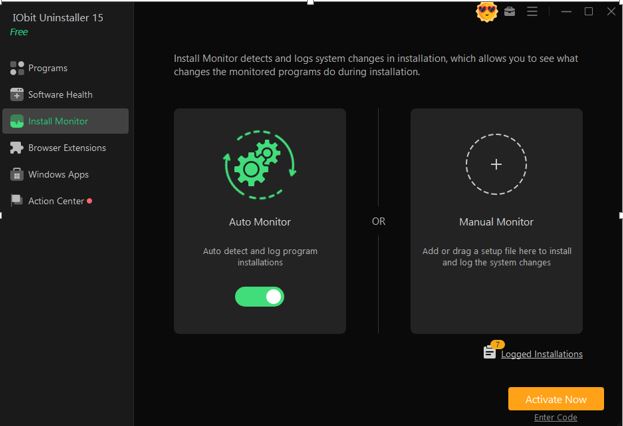
The first thing I did was check the Install Monitor in IObit Uninstaller. This feature detects and logs all system changes made during any software installation. It shows exactly what files, registry entries, and processes each program added to your system.
The Install Monitor has two modes:
- Auto Monitor: Runs in the background and logs every installation automatically (toggle it on and forget it)
- Manual Monitor: You drag a setup file into the window and it monitors that specific installation in real time
I had Auto Monitor enabled, so when I opened Logged Installations, I could see exactly what had been installed on my PC over the past weeks — including the unauthorized 2GB bundle. This gave me the confidence to know exactly what to remove without accidentally deleting something important.
Step 2 — Check Recently Installed Programs
Even without Install Monitor, IObit Uninstaller makes it easy to find newly installed programs. In the Programs section, click “Recently Installed” to see everything added to your PC in the past days or weeks. The list shows program names, sizes, and install dates, making it easy to spot something unfamiliar.
I found the suspicious programs immediately. One was labeled as a “Performance Suite” installed on the same date as my last system update, definitely not something I chose to install.
The disk drive filter was also helpful. Since my C: drive was nearly full, I filtered the program list to show only software installed on C: to narrow down the search. IObit Uninstaller showed programs installed across all drives C, E, and F with a simple dropdown menu.
Step 3 — Force Uninstall Programs That Resist Removal
Here is where things got interesting. When I tried to uninstall the suspicious program, it failed. The built-in uninstaller threw an error and left the program in place. This is a common trick used by bundleware and adware their uninstallers are broken or deliberately designed to resist removal. IObit Uninstaller has a dedicated tool for exactly this situation: Force Uninstall+.
Force Uninstall+ works even when:
- The program’s uninstall registry entry is missing or broken
- The built-in uninstaller crashes or shows errors
- The program has already been partially deleted but still shows up in your system
Simply browse to the program’s main executable file or folder, drag it into the Force Uninstall+ window, and click Uninstall. This uninstaller for Windows analyzes all related files and registry keys and wipes them completely. It took about 90 seconds for the 2GB program to be fully removed — no errors, no leftovers.
Step 4 — Use the Stubborn Program Remover for Deep Cleaning
After the forced removal, I noticed there were still traces of the unwanted software showing up in some system areas. This is where the Stubborn Program Remover comes in.
The Stubborn Program Remover maintains a database of over 4,000 programs with specialized removal routines. The free version includes 38 programs in its Official Remover Database. The PRO version expands this to 4000+ supported programs useful for removing deeply embedded software like antivirus tools, VPN clients, and system utilities that leave behind protected files and kernel drivers. The tool ran a deep removal sequence that cleared everything the regular uninstall had missed.
Step 5 — Shred the Leftover Files Permanently
Even after uninstalling, some sensitive data from the removed program remained in hidden folders. For privacy-sensitive situations like removing spyware, tracking tools, or programs that had access to personal files simply deleting leftovers is not enough. Deleted files can often be recovered with data recovery software.
IObit Uninstaller includes a File Shredder with three modes:
- Quick Mode: Fast overwrite, sufficient for most personal data
- Advanced Mode: Multi-pass overwrite for stronger data destruction (selected by default)
- Expert Mode: Maximum security overwrite for highly sensitive files
I dragged the leftover folder into the File Shredder, selected Advanced Mode, and clicked Shred. The files were permanently destroyed — no recovery possible. This gave me peace of mind that the program truly was gone.
Step 6 — Update Remaining Software to Close Security Gaps
Bundleware and silent installers often target systems that have outdated software with known vulnerabilities. After removing the rogue program, I ran a software update check to make sure everything else on my system was current.
The Software Updater found 2 outdated programs — 7-Zip 25.00 needed an update to 25.01, and WinZip 25.0 had a major update available. Google Chrome, Mozilla Firefox, and Skype were all up to date. Updating outdated software closes the security holes that silent installers exploit.
How to Prevent Silent Installations in the Future
Now that my PC was clean, I took a few steps to prevent this from happening again:
- Enable Auto Monitor in IObit Uninstaller, it silently logs every installation so I always have a record
- Always choose “Custom Installation” when installing any software and uncheck bundled extras
- Check “Recently Installed” after any Windows update or software update to verify nothing unexpected was added
- Keep all software up to date to close vulnerabilities that silent installers exploit
Final Thoughts
A 2GB program installing itself on your PC without your knowledge is a serious problem but it is one you can completely solve. IObit Uninstaller gives you every tool you need: Install Monitor to detect unauthorized installs, Force Uninstall to remove resistant programs, Stubborn Program Remover for deep cleaning, File Shredder for permanent data destruction, and Software Updater to keep your system secure going forward. Take back control of your PC today.

